HostingInIndia
  • 0 Shopping Cart
  • Home
  • Store
    • Browse All
    • Linux Shared Hosting
    • DirectAdmin Shared Hosting
    • Windows Shared Hosting
    • Linux Reseller Hosting
    • DirectAdmin Reseller Hosting
    • Windows Reseller Hosting
    • linux Cloud VPS
    • VPS Windows Cloud Servers
    • Wordpress Hosting
    • SSL Certificates
    • Business Email Solutions
    • Enterprise Email Solutions
    • Email Solutions
    • Dedicated Servers USA
    • Dedicated Servers India
    • Weebly Website Builder
    • Google Workspace
    • OX Business Email US
    • OX Enterprise Email US
    • Register a New Domain
    • Transfer Domains to Us
  • Announcements
  • Knowledgebase
  • Network Status
  • Contact Us
  • More
  • Account
    • Login
    • Forgot Password?
  1. Portal Home
  2. Knowledgebase
  3. CloudLinux (cPanel)
  4. How to Enable ionCube Loader Using CloudLinux Selector in cPanel

  Categories

Backup/Restore
4
Cloudflare (cPanel)
9
CloudLinux (cPanel)
10
cPanel - Control Panel
24
Databases
11
DirectAdmin
48
DNS - Nameservers
6
Domain Management
10
Email
12
FTP
10
Mail Filters & SPAM
8
Mobile Phones
11
Sales
12
Security
0
WHM
19

  Categories

  Support

My Support Tickets
Announcements
Knowledgebase
Downloads
Network Status
Open Ticket

How to Enable ionCube Loader Using CloudLinux Selector in cPanel Print

  • 0

You can use CloudLinux Selector to enable ionCube Loader in cPanel.


1. Log in to your cPanel account.

2. In the Software section, click on Select PHP Version.

cP-CL-Select-PHP-Version-icon.gif


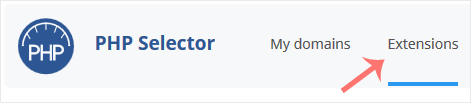
3. Click on the Extensions menu.

CL-extensions-tab-button.gif

Note: If the Extensions page shows an error related to the native PHP version, change it to a non-native version first.


4. Checkmark the ioncube_loader. Once enabled, it will display a success message.
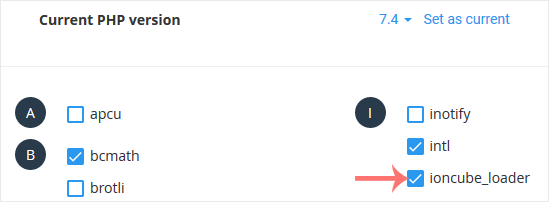
CL-enable-ioncubeloader.gif


The message will read that the module ionCube Loader is saved.

CL-ioncube-loader-enabled.gif


Was this answer helpful?

Related Articles

How to Change the PHP Version via CloudLinux Selector in cPanel You can use CloudLinux's Select PHP Version to change your website's PHP Version. CloudLinux... How to Enable the GD Extension of PHP Using CloudLinux Selector in cPanel You can use CloudLinux Selector to enable GD extension in PHP via cPanel.   1. Log in to your... How to Enable the Mailparse Extension of PHP Using CloudLinux Selector in cPanel You can use CloudLinux Selector to enable the Mailparse extension in PHP via cPanel.   1. Log... How to Enable or Disable PHP Extensions Using the CloudLinux Selector in cPanel You can use CloudLinux Selector to enable or disable available PHP extensions in cPanel.   1.... How to Enable or Disable PHP's allow_url_fopen Using CloudLinux Selector in cPanel You can use CloudLinux Selector to enable or disable the allow_url_fopen directive in cPanel....
« Back

  Support

My Support Tickets
Announcements
Knowledgebase
Downloads
Network Status
Open Ticket
  • Contact Us
  • Terms of Service

Copyright © 2026 HostingInIndia. All Rights Reserved.


Loading...
Loading...
Choose language
العربية
Azerbaijani
Català
中文
Hrvatski
Čeština
Dansk
Nederlands
English
Estonian
Persian
Français
Deutsch
עברית
Magyar
Italiano
Macedonian
Norwegian
Português
Português
Română
Русский
Español
Svenska
Türkçe
Українська

Choose Currency

Rs INR
$ USD

Generate Password

Please enter a number between 8 and 64 for the password length